November 18, 2026
How to customize your iPhone background and app icons
Open Settings, tap Wallpaper, then Add New Wallpaper, pick a photo or a color and tap Add. Customize Home Screen gives the home screen its own background. For the icons, touch and hold the home screen, tap Edit, Customize, and pick Dark, Clear or Tinted.
Change the background
- Open Settings and tap Wallpaper.
- Tap Add New Wallpaper.
- Pick a design. Photos, Emoji and Color are at the top, ready made sets below.
- Tap Add.
- Tap Set as Wallpaper Pair for one picture on both screens, or Customize Home Screen for a separate one.
- In Customize Home Screen tap a color, tap Select a Photo, or tap Blur so the icons stand out.
On the lock screen touch and hold, tap Customize, then tap the time for another font. Widgets and apps under the clock are in how to put apps on your lock screen.
Change every app icon at once
- Touch and hold an empty spot on the home screen until the icons move.
- Tap Edit, then Customize.
- Tap Dark, Clear or Tinted.
- For Tinted, move the sliders or tap the eyedropper and pick a color from your wallpaper.
- Tap Auto if the icons should turn dark at night and light by day.
The large icon button in the same panel makes the icons bigger and drops the names under them. Six full setups are in iPhone home screen layout ideas.
Your own picture for one icon
iOS has no setting for this. A shortcut that opens the app can wear any photo.
- Open Shortcuts and tap the add button.
- Tap Add Action, search for Open App and tap it.
- Tap App in the action and choose the app.
- Tap Done.
- Open the new shortcut's Details and tap Add to Home Screen.
- Tap the icon under Home Screen Name and Icon, then Choose Photo.
- Tap the name to change what shows under the icon, then tap Add.
- Touch and hold the old icon, tap Remove App, then Remove from Home Screen. The app stays in the App Library.
It works one icon at a time.
A whole page in one look
iOS 27 has a widget size that fills a whole home screen page. App Launcher turns it into a grid of your apps on a background you choose, 60 icons free, up to 104 with Pro.
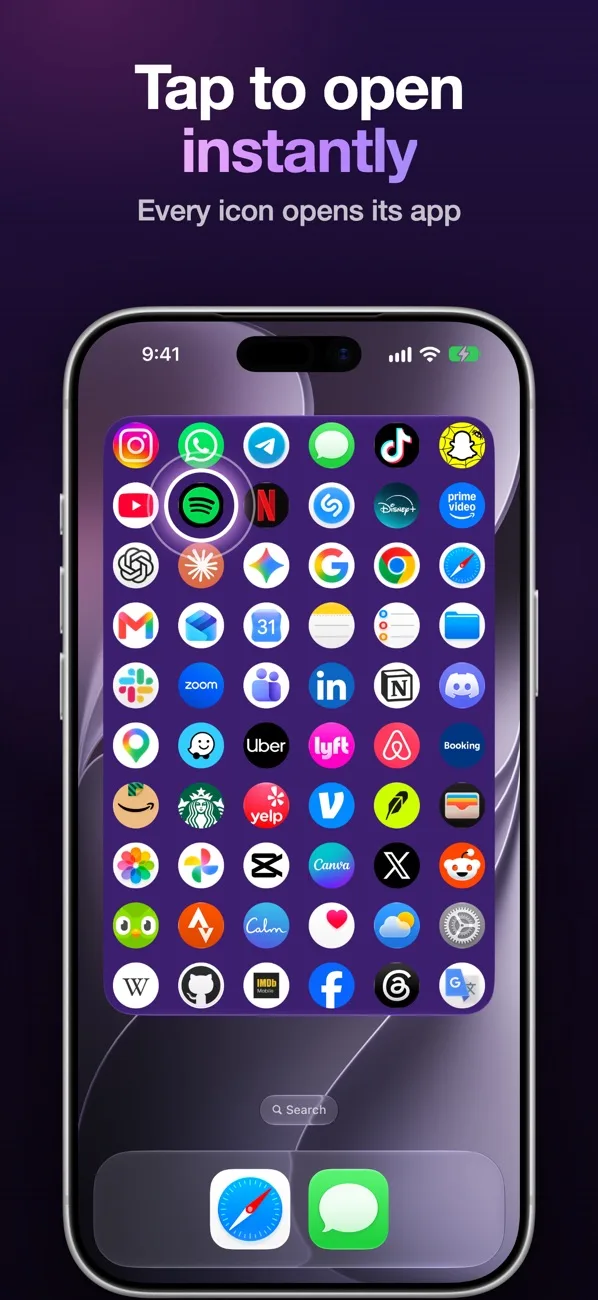
- Install App Launcher, tap an empty spot in it and add your apps.
- On the home screen touch and hold, tap Edit, Add Widget, Launcher, and put it on an empty page.
- In the app open Settings and tap Widget background.
- Pick Black, Color, Transparent or Liquid glass. With Color, the Widget color row sets the shade.
- For Transparent and Liquid glass the widget shows a pink frame. Take a screenshot of the home screen and pick it in the app.
- Touch and hold the home screen, swipe to the empty page at the end, take a screenshot there and pick it too.
The widget now shows your wallpaper behind the icons. iPhone writes Launcher under the widget, the large icon button from the section above hides that name.
All four backgrounds are free. Rounded square icons, the outline look, hidden names and the other grid sizes are Pro.
What App Launcher does not change
- The wallpaper, the dock, the App Library and Spotlight stay as iOS draws them.
- Icons outside its widget, those take Dark, Clear or Tinted.
- Your photos as icons. Choose picture on an icon swaps it for the icon of another app, not for a photo.
- A wallpaper change. Transparent does not follow it by itself, tap Match the wallpaper again in Settings.
- iPhones before iOS 27, they have no full page widget.
Apple's pages on this: change the wallpaper, customize apps and widgets on the Home Screen.
Questions
Can the home screen and lock screen have different backgrounds?
Yes. After you pick a wallpaper tap Customize Home Screen instead of Set as Wallpaper Pair, then choose a color, a photo or Blur.
How do I change the color of all app icons at once?
Touch and hold the home screen, tap Edit, Customize, then Tinted. The color you set goes to every icon.
Can I customize the App Library?
Not its categories, iOS sorts apps into them by itself. Settings, Home Screen & App Library, App Library Only keeps new apps off the home screen.