November 16, 2026
iPhone home screen layout ideas - 6 setups you can copy
The layouts that last follow how you reach for the phone: few pages, favourites near your thumb, the rest in the App Library. Pick one of the six below. Each takes about ten minutes, and you can undo all of it.
Three settings that help every layout
- New apps stay off the home screen. Settings, Home Screen & App Library, App Library Only.
- Hide a page instead of emptying it. Touch and hold an empty spot, tap the dots above the dock, untick the page, tap Done.
- Move many icons at once. Start dragging one icon, then tap others with a second finger. They stack under the first.
1. One page
Keep the 24 apps you open every week on the first page and hide the other pages. Everything else is one swipe away: down for search, left for the App Library. This is the layout most people keep.
2. Thumb zone
Leave the top two rows empty and fill the bottom four. Since iOS 18 an icon stays where you drop it, so the gap at the top holds. Your thumb reaches every app without a second hand, and the wallpaper finally shows.
3. One color
Touch and hold an empty spot, tap Edit, Customize, then Tinted and pick a color. Every icon takes the same tone, which calms a busy page at once. Add large icons in the same panel to drop the names.
4. Widgets on top, apps below
One wide widget at the top (calendar or weather), apps in the rows under it. To get several widgets in one slot, drag one widget onto another of the same size. They form a stack you flip through with a swipe.
5. A work page and a home page
- Put work apps on one page and the rest on another.
- Open Settings, Focus, pick Work.
- Under Customize Screens tap the home screen and tick only the work page.
While Work is on, the phone shows that page alone. The other pages come back when it ends.
6. Everything on one screen
If you would rather see every app than search for it, iOS 27 has a widget size that fills a whole page, and App Launcher turns it into a grid: 60 icons for free, up to 104 with Pro, against 24 on a normal page.
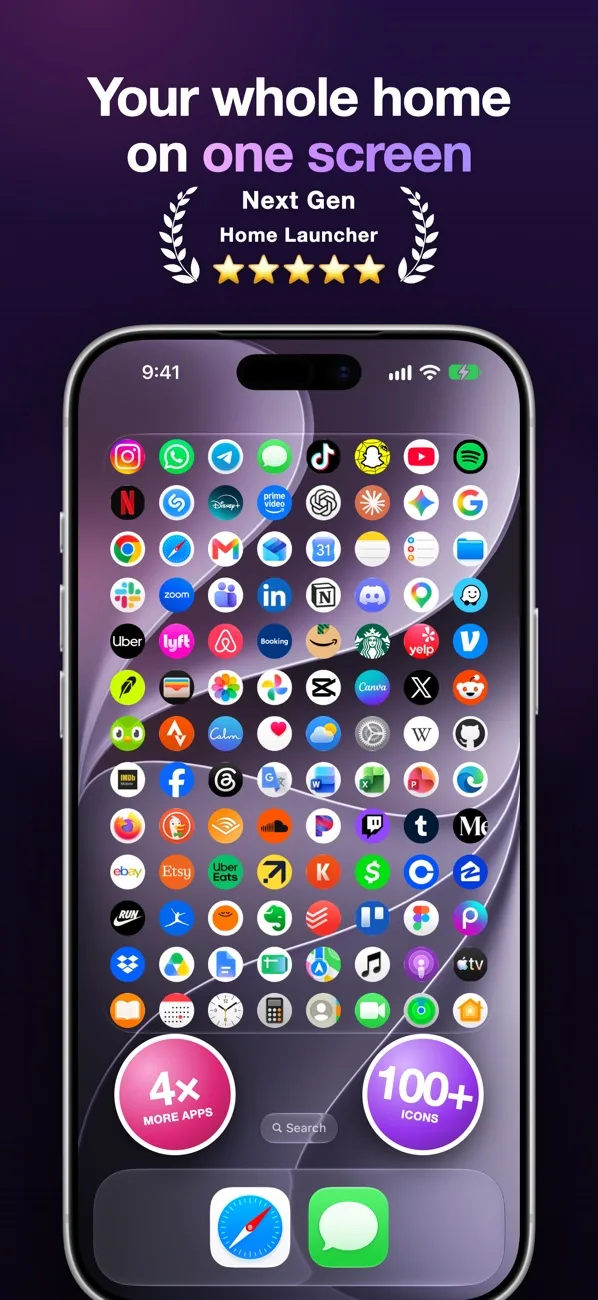
- Install App Launcher, tap an empty spot in it and add your apps.
- Drag them into place. Icons can sit between rows.
- On the home screen touch and hold, tap Edit, Add Widget, Launcher.
The full recipe with backgrounds and hidden names is in Nova Launcher for iPhone. For the lock screen see how to put apps on your lock screen.
If you want the old layout back
Settings, General, Transfer or Reset iPhone, Reset, Reset Home Screen Layout. Apple's apps return to their first places, your folders are removed and the rest is sorted by name.
Apple's pages on this: organize the Home Screen and App Library, customize apps and widgets.
Questions
How many apps fit on one iPhone home screen page?
24, in 4 columns and 6 rows, plus 4 in the dock. A folder shows 9 apps per folder page.
Can I leave empty spaces between icons?
Yes, on iOS 18 or later. Drag an icon to any free spot of the grid and it stays there.
How do I hide the names under the icons?
Touch and hold an empty spot, tap Edit, Customize, and switch to large icons. The names on the home screen disappear.
Will a new layout delete my apps?
No. Removing an icon from the home screen keeps the app in the App Library, as long as you choose Remove from Home Screen and not Delete App.